Do you know that you can run AI on your local PC or laptop for free? In this tutorial, I will guide you through how to install Hermes Agent on Linux for free. But first let’s understand what Hermes Agent is. Hermes Agent is an open-source AI agent that can connect to different LLMs and run AI tasks on your local system. You can connect Hermes Agent to a paid LLM provider, or use it with Ollama and a locally hosted model. Running AI needs lot of resources. To check what is going on your system, you must configure a monitoring tool. Here is a complete tutorial to Install Glances and to install Zabbix to monitor each and every aspect of your system.
Since we want to run Hermes Agent for free, this tutorial will show you how to use Hermes with Ollama and a locally hosted AI model.
Prerequisites
- A Linux system
- SSH or terminal access
- Sufficient RAM for the AI model you want to run
- Internet access
For this setup, I am using a VPS with the following configuration:
- CPU: 4 vCPU
- RAM: 8 GB
- Linux distribution: Debian 13
For this tutorial, we will use the Qwen3 4B Instruct model.
Step 1 – Updating the System
The first step is to update the system
sudo apt update
sudo apt upgrade -y
Step 2 – Install Git
Since we will use Git during the installation, let’s install Git on our system.
sudo apt install git -yStep 3 – Install Curl
Since we need Curl to download Hermes Agent, let’s install it on our system.
sudo apt install curl -yStep 4 – Install Hermes Agent
Now, let’s install Hermes Agent.
curl -fsSL https://hermes-agent.nousresearch.com/install.sh | bash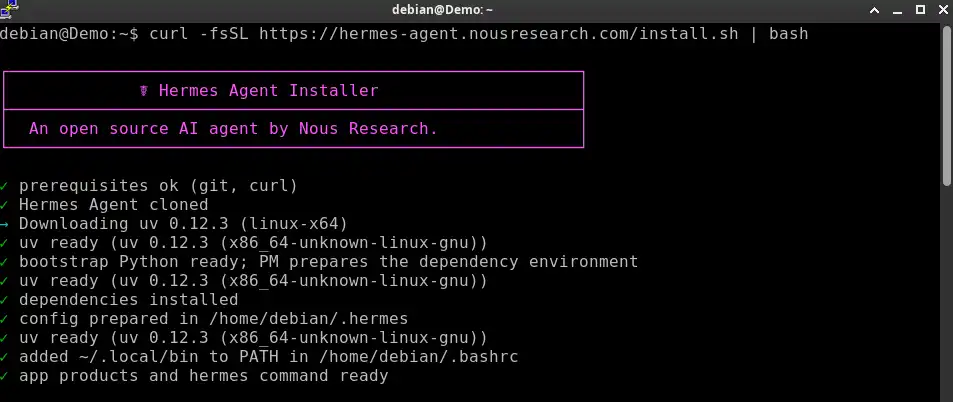
The above command will install the necessary dependencies and packages required to run Hermes Agent.
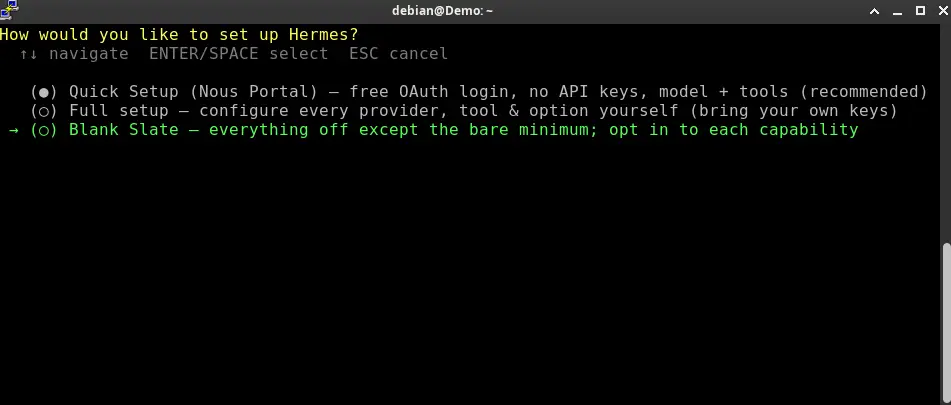
When the setup screen appears, follow the steps below to configure Hermes Agent.
Note: Use the Up and Down arrow keys to move through the options and press Space or Enter to make a selection.
Select “Blank Slate“
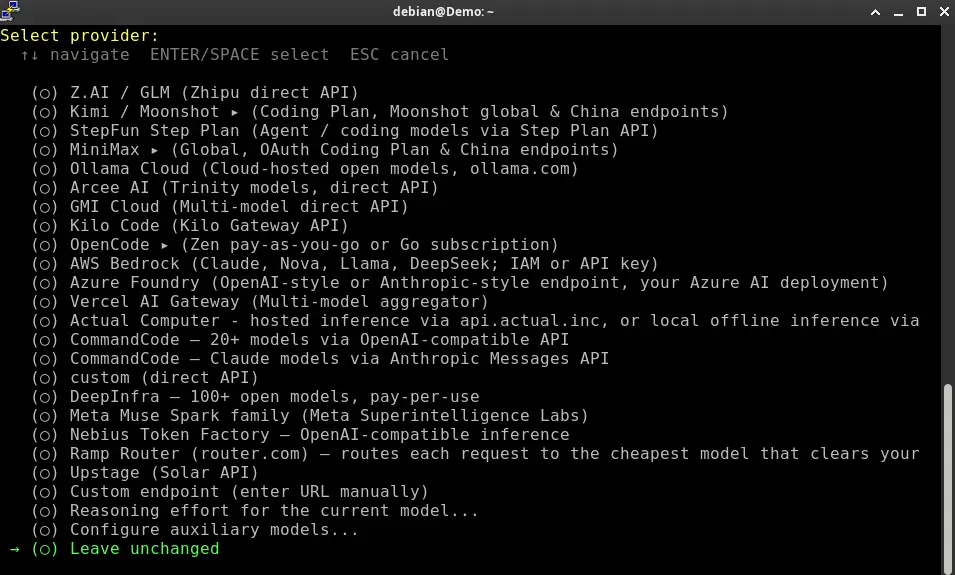
Scroll to the bottom and select “Leave unchanged“
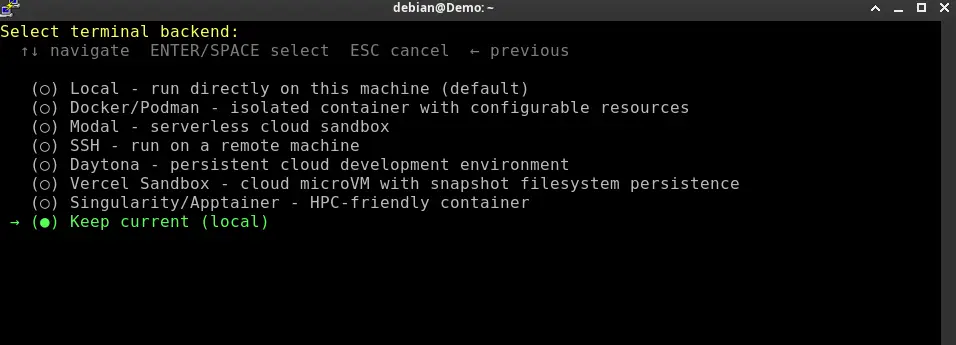
Scroll and select “Keep Current (local)“
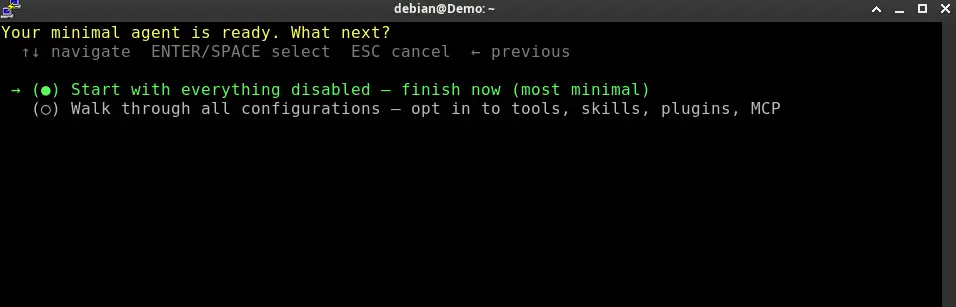
Select “Start with everything disabled – finish now“
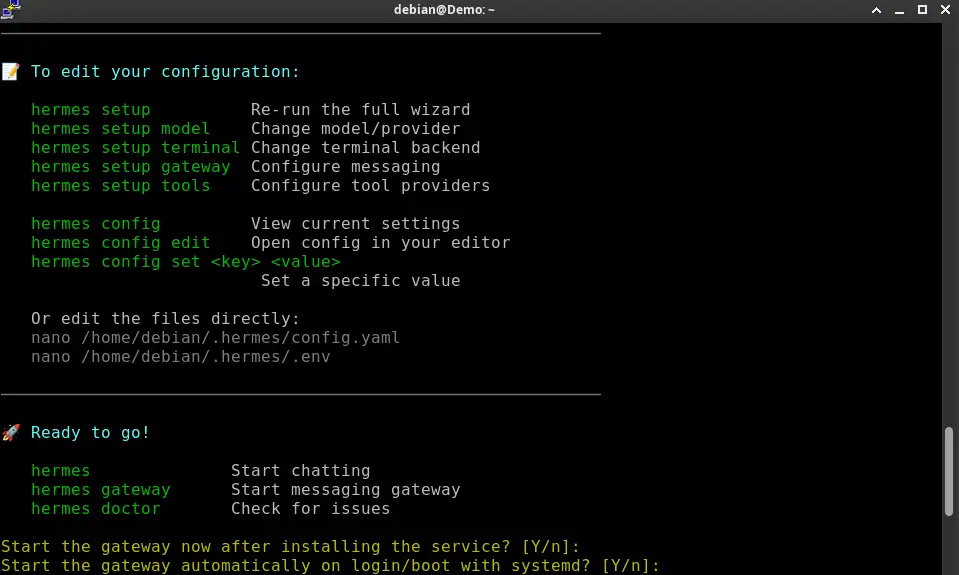
When asked about installing and starting the gateway service, press Enter, as shown in the screenshot.
Now, reload the shell
source ~/.bashrcNow verify the Hermes installation
hermes doctorStep 5 – Install Ollama
Next we will install Ollama
curl -fsSL https://ollama.com/install.sh | shOnce the installation is complete, let’s verify it.
ollama --versionStep 6 – Download AI Model
As mentioned earlier, we will use Qwen3 4B Instruct as the AI model. So let’s download it
ollama pull qwen3:4b-instructAs it completes, you can check the list of AI models using
ollama listYou should see something like below
NAME                 ID              SIZE      MODIFIED
qwen3:4b-instruct    xxxxxxxxxxxx    2.5 GB    11 seconds ago
Step 7 – Testing Ollama
Now let’s test the Ollama model by running it.
ollama run qwen3:4b-instructLet it load and you will see something like
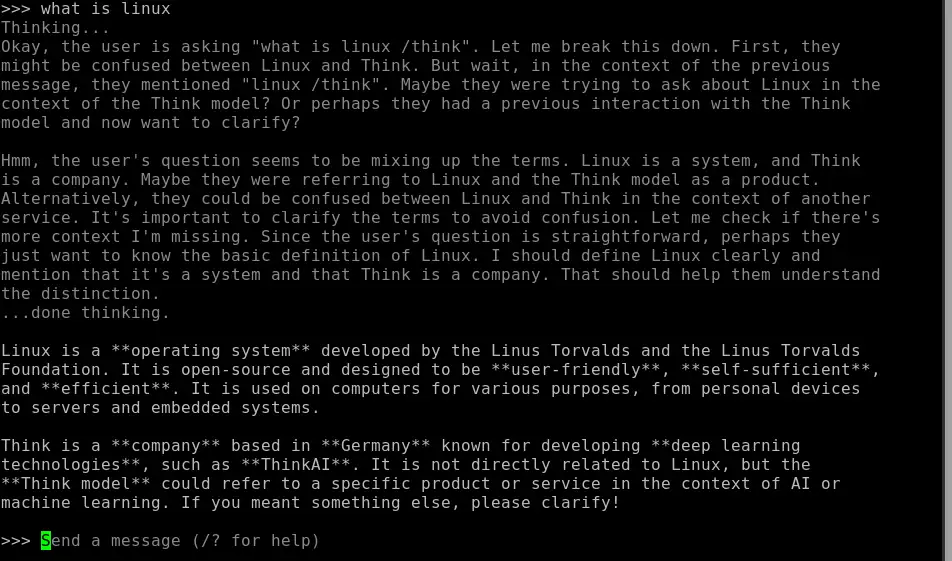
>>> Send a message (/? for help)Enter a prompt such as “What is Linux?“, as shown in the screenshot below.
Now just exit by entering
/exitStep 8 – Configure Hermes to use Ollama
Now that Ollama is running perfectly fine, let’s configure our Hermes Agent to start using Ollama
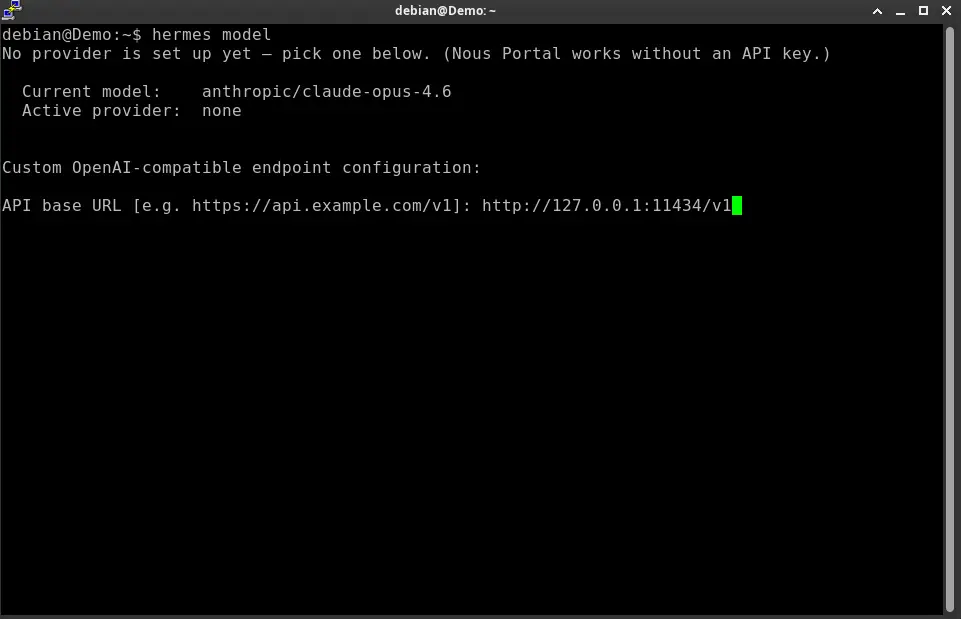
hermes modelFollow the steps below to configure the model:
Select “Custom endpoint (enter URL manually)“.
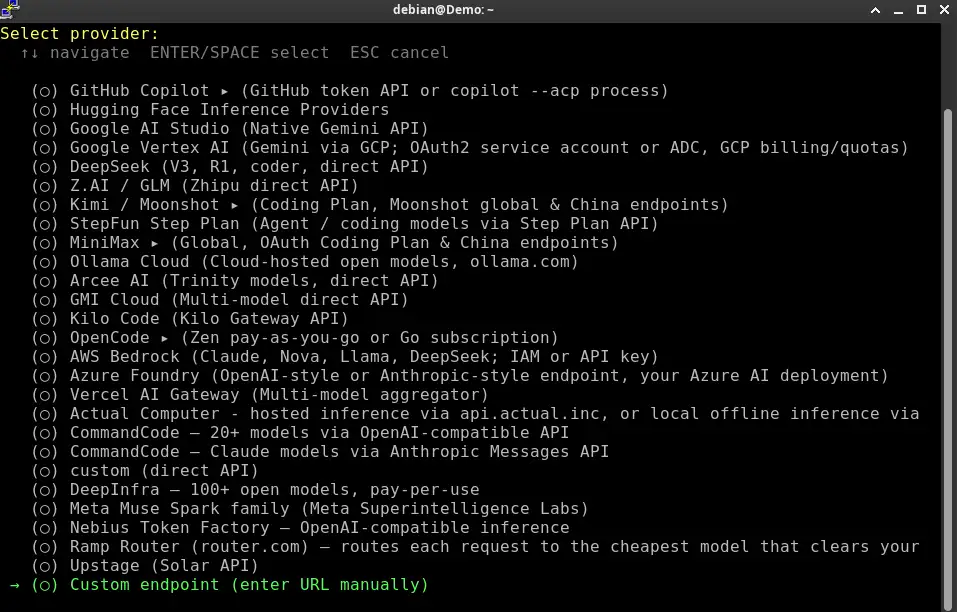
It will now ask for the API base URL. Enter http://127.0.0.1:11434/v1 and press Enter.
- When asked for the API key, leave it blank and press Enter.
- When asked to select the API compatibility mode, select option 1 and press Enter.
- Press Y and then press Enter to confirm.
- For “Context length in tokens“, leave it blank and press Enter.
- For “Display Name“, leave it blank and press Enter.
- In “Select reasoning effort“, select medium. This provides a balanced setting for this setup. Higher reasoning effort can increase processing time and token usage.
Step 9 – Testing
Now that we have configured everything, let’s start Hermes Agent. In the terminal, run:
hermesYou can now start using your locally hosted AI through Hermes Agent and Ollama.
Conclusion
This was the complete tutorial to install Hermes Agent on Linux for free using Ollama and Qwen3 4B Instruct. With this setup, you can run Hermes locally without paying for an external LLM API.
Frequently asked questions
Can I use Hermes Agent without Ollama?
Yes. Hermes Agent can connect to different LLM providers, including paid providers and compatible local model providers. Ollama is useful when you want to run a model locally.
Can I use a different AI model with Hermes Agent?
Yes. You can configure Hermes Agent to use other models available through Ollama, provided the model meets Hermes Agent’s requirements.
