Linux provides powerful commands such as find and locate for searching files. However, using these commands effectively often requires knowing the right search pattern or command options. If you only remember part of a filename, a fuzzy finder such as fzf can make the process much easier.
For example, you have installed WordPress on Debian and now you want to tune PHP but you dont know the exact location of www.conf file. You can use fuzzy finder and it will show you the exact location of the file.
On Windows 10 and later, you get a search bar where you can search for almost anything. However, the Linux terminal doesn’t provide a similar graphical search experience by default. But what if you could get a similar search experience right in the Linux terminal? Wouldn’t that be a great help?
Table of Contents
What is Fuzzy Finder?
fzf is an open-source, lightweight command-line fuzzy finder. It can be used to interactively search and filter lists of items, including files and directories. By combining fzf with commands such as find, you can quickly search for files even when you don’t remember their exact names.
On Ubuntu/Debian
If you are using Ubuntu or Debian, you can install the tool by executing
sudo apt update -y
sudo apt install fzf -y
On Fedora/RHEL
If you are using Fedora or RHEL, you can install via
sudo dnf update -y
sudo dnf install fzf -y
On Arch Linux
If you are using Arch Linux, you can install it via
sudo pacman update -y
sudo pacman install fzf -y
How to use Fuzzy Finder fzf
Right after the installation, you just need to execute “fzf” on the terminal and hit enter
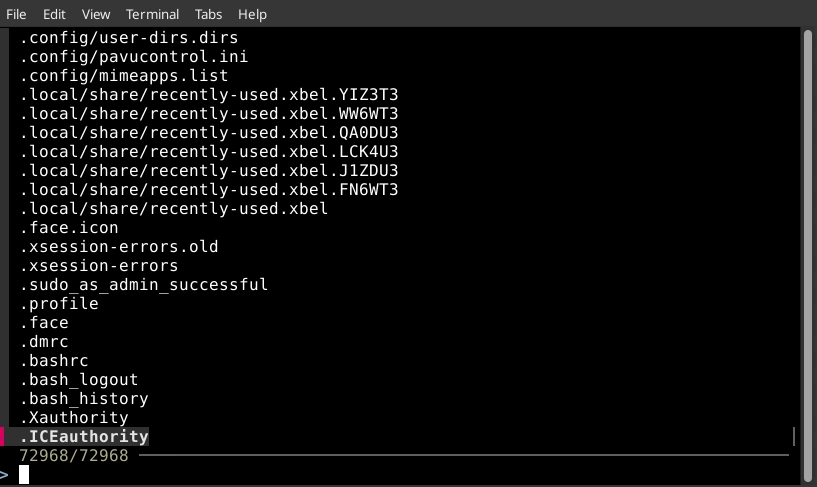
fzf [Now press enter]This will open fuzzy finder and will allow you to enter the name of the file. Now just type whatever file name you want to guess and it will show you all the possibilities along with their path same as shown below
Conclusion
With this, fuzzy finder installation is completed and now you can start using it on your Linux PC or server.
Frequently asked questions
Is Fuzzy Finder free?
Yes, its absolutely free.
How do i exit from Fuzzy Finder?
You can press ctrl+c or type exit; and hit enter to exit from Fuzzy Finder.
