If you are using Linux, especially through a command-line interface, then you must be wondering how to download files, packages and others from the internet. On a GUI based system, you can easily do that by using a browser but on CLI-based system, you may not have a browser.
Table of Contents
- Why do You Need Wget
- How to Download Files Using Wget
- How to Install Wget in Linux
- Wget Command Syntax
- How to Download Files Using Wget
- Duplicate Downloads
- How to Prevent Duplicate Downloads
- How to Show Download Progress
- How to Download Files with a Different Name
- How to Download Files to a Specific Directory
- How to Download Files in the Background
- How to Resume an Interrupted Download
- How to Download Files with HTTP Authentication
- How to Download Files from an FTP Server
- How to Check a URL Before Downloading
- Conclusion
Why do You Need Wget
Whether you want to install WordPress, install Drupal or anything that is not available in the Linux repository, you first need to download it, only then you will be able to configure it on your server.
Wget is the command line utility that will help you in this case. Let’s say you want to download WordPress, you can easily do that using “wget” command. Wget supports HTTP, HTTPS, and FTP protocols, allowing you to download files from different sources.
How to Download Files Using Wget
In this tutorial, I will guide you through downloading any file or package or any other thing from the web using wget.
How to Install Wget in Linux
On newer version of Debian and Ubuntu, you get wget installed by default, but in case its not available you can easily install it using
On Debian/Ubuntu
sudo apt update
sudo apt install wget -y
On Fedora, RHEL and other distros based on these
sudo dnf update -y
sudo dnf install wget -y
Wget Command Syntax
Wget command syntax is very easy. When you want to download anything using wget, you just need to follow the syntax as
wget [OPTIONS] [URL]What OPTIONS and URL mean here?
- OPTIONS – Control and manage the download behavior.
- URL – The address of the file or resource you want to download.
How to Download Files Using Wget
If you want to download any package for file from internet using wget, in the simplest way you just have to execute
wget [URL]For Example to download WordPress, you can use
wget https://wordpress.org/latest.zipThis will download WordPress on your current directory. You will also see the progress bar, speed, and estimated time of the download.
Duplicate Downloads
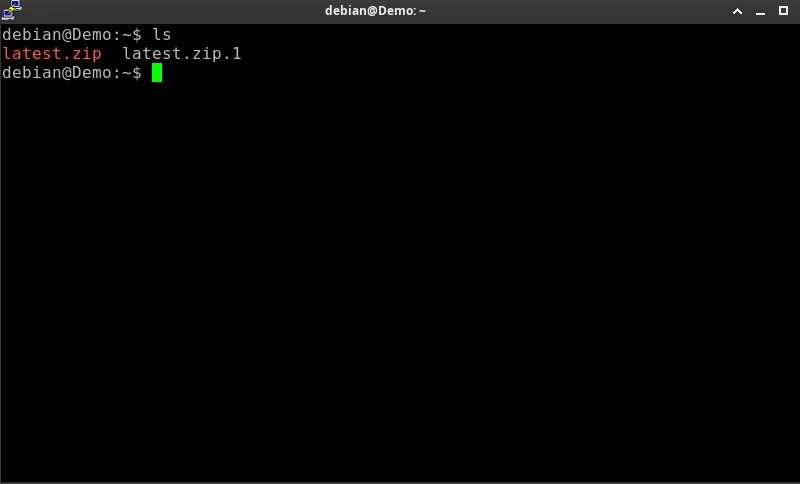
If a file with the same name already exists in the current directory, Wget typically creates a numbered copy instead of overwriting the existing file.
For Example
latest.zip
latest.zip.1
You can also take a look at the screenshot below
How to Prevent Duplicate Downloads
You can prevent downloading already downloaded file using the “-nc” option. When you use wget command with -nc option, instead of creating a numbered copy, you will be shown a message as “already there; not retrieving.“
wget -nc https://wordpress.org/latest.zip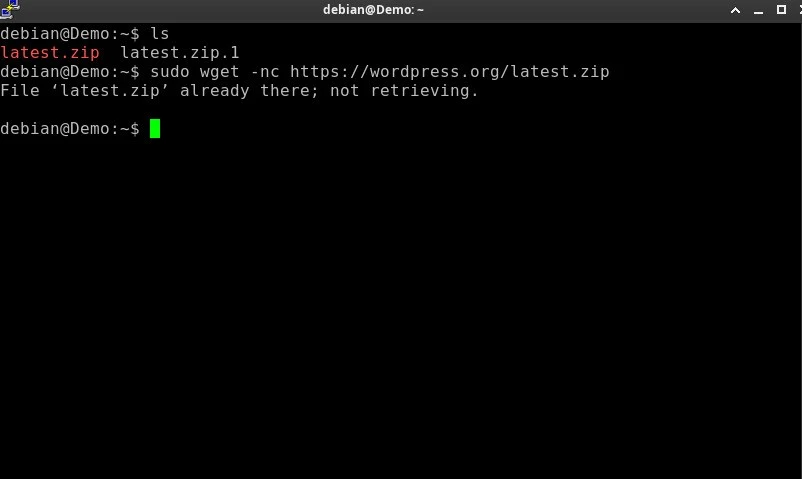
How to Show Download Progress
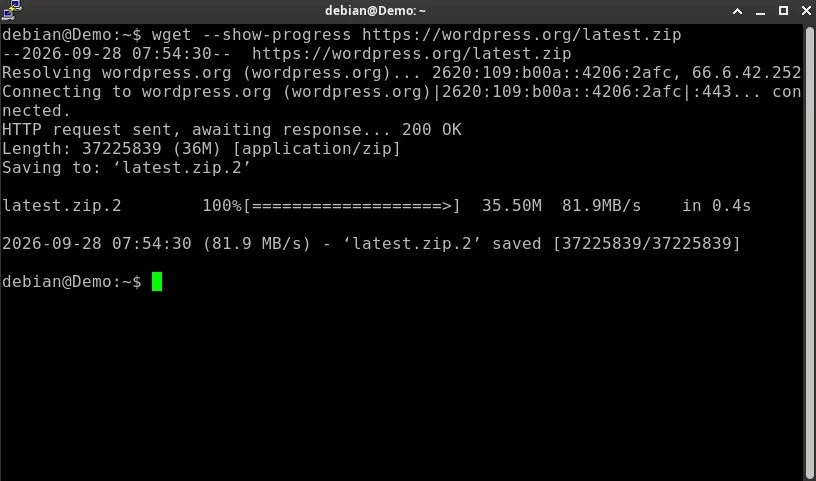
At the time of downloading, you may want to see the progress of the download, then you can use “–show-progress” option
wget --show-progress https://wordpress.org/latest.zipWith “–show-progress” option, you will see the details as below screenshot
How to Download Files with a Different Name
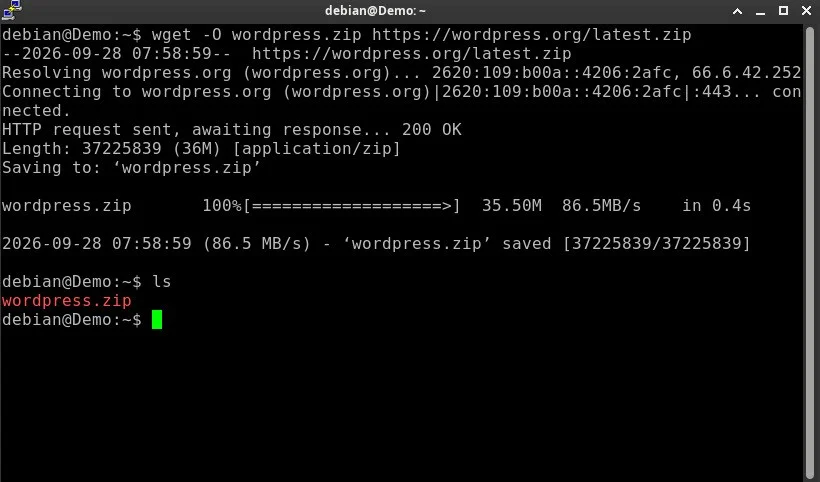
If you want to download the file or package with a different name then you can use the syntax as below
wget -O wordpress.zip https://wordpress.org/latest.zipAs you can see in the screenshot below, the default WordPress package name is “latest.zip“, but using the above syntax, we downloaded it with the name “wordpress.zip“
How to Download Files to a Specific Directory
To download the file or package to a specific location, you can use the following syntax. Lets say we want to download the package or file under /var/www location, then we will use the syntax as
wget -P /var/www https://wordpress.org/latest.zipHow to Download Files in the Background
When you want to download something in background, you can use the “-b” option as following
wget -b https://wordpress.org/latest.zipWget saves the output in a log file, usually wget-log, when running in the background.
How to Resume an Interrupted Download
Let’s say the download is interrupted and you want to resume the download. You can use the following syntax
wget -c https://example.com/large-file.zipHow to Download Files with HTTP Authentication
When you want to download something that needs authentication, you can use the following syntax
wget --user=admin --ask-password https://example.com/file.zipHow to Download Files from an FTP Server
If you want to download something from FTP and remote FTP server needs authentication then you can use the following syntax
wget --ftp-user=FTP_USERNAME --ftp-password=FTP_PASSWORD ftp://ftp.domain.com/file_name.tar.gzNote: FTP credentials are transmitted without encryption when using standard FTP.
How to Check a URL Before Downloading
Before downloading, if you want to check whether the download is available on specific URL, then you can use the following
wget --spider https://wordpress.org/latest.zipConclusion
So using wget command, you can easily download anything from the internet or from FTP server.
Frequently asked questions
Is wget installed by default in Linux?
Wget is pre-installed on many Linux distributions, including Debian and Ubuntu. However, it may not be available on minimal server installations. You can check its availability using the wget --version command.
How do I download multiple files using wget?
You can download multiple files by specifying their URLs in a text file and using the -i option.
wget -i urls.txt
Can wget download an entire website?
Yes, Wget supports recursive downloading, which allows you to download website pages and their linked resources.
wget –mirror https://example.com
